|
|
|
Products
Follow Us
Content:
IntroductionPrint Censor is an easy-to-use program designed to record a printer usage statistics and to simplify the management of network printers. With Print Censor you can save the print jobs content. You can limit the number of pages a user can print by setting quotas for the number of pages printed or for the print cost. After a user exceeds a specified quota, access to the printer is denied. Print Censor gives you complete information about every print job:
Using Print Censor you can:
Print Censor can monitor and store print jobs created under various operating systems: Microsoft Windows, Mac, Linux and other. Print Censor features an improved print jobs manager. All basic operations and print jobs can be handled directly from Print Censor. The software also features remote management of printers installed on other computers. You can also remotely install and configure Print Censor to store print jobs on remote computers. All the information can be collected for preview in any number of ways. Exporting the data into files of various formats is also supported. Print Censor works as service. This means it automatically starts when the computer boots up and all print jobs will be recorded, even if a user does not log in to the system. Thus, using Print Censor, you can make routine print job management easy, cut down your printing expenses and better predict the need for printing materials for the whole network. Continue to cut your printer supplies cost by comparing prices on printer cartridges before buying. LicensingPrint Censor ProfessionalA license is granted for one computer. This means one license is needed to use the software on one computer (print server). You can use different types of licenses:
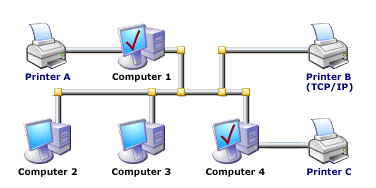
Before installing Print Censor, let's look at a typical network configuration, and determine the computers to which we should install Print Censor:
Printer A and Printer C are connected to computers directly (using LPT or USB ports). Printer B is connected to network using a TCP/IP netcard. In this case, to control:
In this case, one license "Single printer license" and one license "2-5 printers license" are needed if you choose Computer 1 or Computer 4 as a print server for Printer B. 3 licenses "Single printer license" are needed if you choose Computer 2 or Computer 3 as a print server for the same printer.
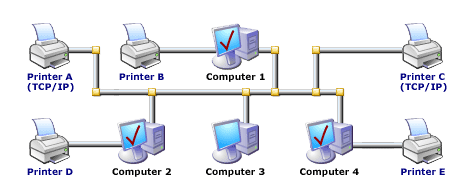
Printer B, Printer D and Printer E are connected to computers directly (using LPT or USB ports). Printer A and Printer C is connected to network using a TCP/IP netcard. In this case, to control:
In this case, 2 licenses "Single printer license" and one license "2-5 printers license" are needed if you choose Computer 1, Computer 2 or Computer 4 as a print server for Printer A and Printer C. 4 licenses "Single printer license" are needed if you choose Computer 3 as a print server for these printers. Print Censor EnterpriseA license is granted for one computer. This means one license is needed to use the software on one computer (print server). You can use different types of licenses:
For example: with "11-20 Printers License" you can install the Print Censor Enterprise on one computer (print server) and monitor up to 20 printers from this computer. If you need monitor printers from other computers than you need Client Module Licenses for these computers. Before installing Print Censor, let's look at a typical network configuration, and determine the computers to which we should install Print Censor:
Printer A and Printer C are connected to computers directly (using LPT or USB ports). Printer B is connected to network using a TCP/IP netcard. In this case, to control:
In this case:
Printer B, Printer D and Printer E are connected to computers directly (using LPT or USB ports). Printer A and Printer C is connected to network using a TCP/IP netcard. In this case, to control:
In this case:
Print Censor InstallationPlease read this before installation Print Censor is designed to control printers in a Microsoft Windows network. It is presumed that all the print jobs are sent from workstations to a Windows server (or a workstation which serves as a print server) and not directly from a workstation to network printers. You will need administrator privileges to install Print Censor to a local workstation or print server. Installing Print CensorPrint Censor consists of two components: client and server. You can install them both, or only a client for remote management. Before installing Print Censor, make sure you are installing the latest version of the software. Run setup.exe and follow the instructions. When installing Print Censor, you may have to reboot the computer if the files which should be replaced are currently in use. After system reboot, all the necessary files are updated. If the installation wizard did not ask for a system reboot, you can start using Print Censor immediately. Server componentThe Server component is the Print Censor, service which should be installed to a print server to allow the following:
Client componentThe Print Censor client component can be installed to any server or workstation and can remotely manage any print server on which the Print Censor service is installed. Previous version updateYou have to un-install previous version of Print Censor before installing a new version. If you want to keep print job history, do not delete the old database when un-installing the software. The new database format is incompatible with the Print Censor 3.õ and 4.1x database format. Print QueueYou can manage the print queue of any network printer using Print Censor. Working with printersAll standard printer operations are available in Print Censor. Right click the necessary printer and select the command:
All these commands are available for several printers simultaneously (except the default printer setting). Working with printing tasksUnlike the standard Windows Print Queue window you can see more information on the print jobs in Print Censor. The following information is provided:
The following operations are available in the Print Queue window:
All these operations are available for several print jobs at once. Besides, you can hide the unnecessary columns. Just right click the columns header and select the necessary columns. Network PrintersTo view the print queue of network printers select the "Settings"-"Show network printers" menu item. Note: Net printers are not displayed at remote control, for additional information see the Remote Control section. If you have to work with print job queues for a long time, for more convenience you can switch to the "Queue manager only" mode (menu "Options" - "Queue manager only"). QuotasWe realized in Print Censor the quota support using which you can easily control and restrict the number of printed pages of the user. You can specify the quotas according either to the number of the printed pages or to the cost. In order to setup the quotas switch to the "Users" or "Groups" page and click the "General User/Group Options". First of all, specify how you would like to count the printed pages - according to the number or to the cost. If you select the quotas according to the number of the printed pages all the pages printed by the user will be counted, but in case you select according to the cost, the cost of the printed pages will be accounted. It can be useful when you need to manage several printers at a time. For example, the printing cost for color printers is higher than for black and white ones, and the printing cost for the A3 format is higher than for the A4 format. If you specify the quotas according to the cost all these differences will be considered automatically. You can set the cost of one page for a specified printer on the "Printers" page. You can find out the approximate one page printing cost for your printer either from its documentation or on the printer manufacturer site. Remote ControlTo start the remote control it is enough to get connected to the necessary computer (menue "File" - "Connect…"). Now all the operations with printers on this computer are available and you can control the remote printing queue and configure the job logging for the printers connected to the remote computer. Remote Printer ControlUsing the remote printer control you can easily provide the shared access to the printers. Without Print Censor you would have to go to the computer and configure the shared access right on it. Thus, using Print Censor you can save much time managing the printers work especially for large networks. Remote Print Queues ControlWhen managing the remote print queues all the standard operations the same as with the local control are available for you, but the net printers queue mode view is unavailable. Remote Configuring Print Jobs LoggingWith the remote control you can configure the print jobs logging for the remote printers in exactly the same way as with the local control. You can view the logged jobs in the same way as with the local connection. Remote Quotas ConfiguringThe quotas on the remote computer are configured in exactly the same way as on the local computer. In other words, the remote control is exactly the same as the local control of all standard print tasks. Information
What's New
| |||||||||||||||
|